Telemetry and Stats
Dwight tracks every AI invocation locally — no data leaves your machine. Use the dashboard to understand costs, success rates, and which features consume the most tokens.
How It Works
- Every invocation is logged — timestamp, model, tokens, cost, status, feature, and mode.
- View quick stats —
:DwightUsageshows a compact floating window. - Full dashboard —
:DwightStatsopens a detailed split buffer. - Export —
:DwightStats exportsaves data as JSON or CSV.
Quick Usage
:DwightUsage
A floating window with lifetime and session stats: invocation count, tokens sent/received, estimated cost, and per-model breakdown.
Full Dashboard
:DwightStats
Opens a full-width telemetry dashboard in a split buffer with:
- Overview cards — total invocations, cost, success rate, tokens
- Session summary — current session duration, calls, cost
- Daily trend — 14-day sparkline showing cost, invocations, successes, and failures
- Per-feature breakdown — which features consume the most tokens (sorted by cost)
- Per-model breakdown — token usage and cost split by model
- Mode distribution — invocations across operation modes
- Job log summary — recent success/failure counts
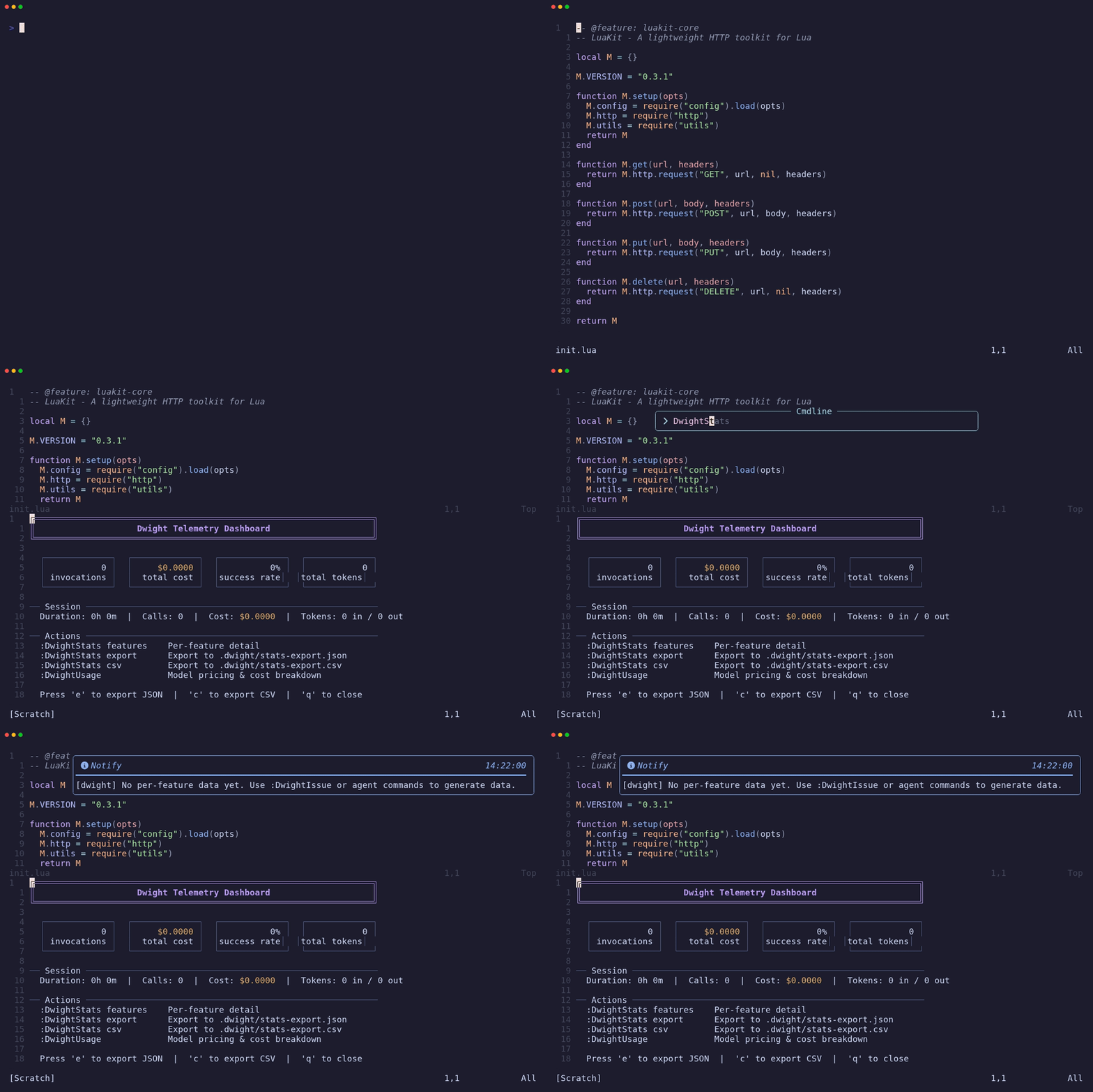
:DwightStats features " Feature-only view
Export
:DwightStats export        " JSON (default)
:DwightStats csv           " CSV format
:DwightStats json          " JSON format
Exports are saved to .dwight/stats-export.{json|csv} and include lifetime data, daily breakdown, per-feature stats, and per-model stats.
Lessons
Related to telemetry, lessons track what Dwight learns from agent sessions:
:DwightLessons                 " View all lessons with metadata
:DwightLessons consolidate     " Merge similar lessons
:DwightLessons stats           " Summary: total, stale, usage counts
:DwightLessons clear           " Remove all lessons
Lessons older than 30 days are flagged as stale in :checkhealth dwight. Run :DwightLessons consolidate to merge overlapping lessons and remove outdated ones.
Data Storage
All telemetry is stored in .dwight/usage.json (included in .dwight/.gitignore by default). Data tracked per invocation: timestamp, duration, model, tokens sent/received, estimated cost, success/failure, feature name, and operation mode.
Session data resets when Neovim restarts. Lifetime data persists across sessions.
Tips
- Check the daily trend for cost spikes. A sudden increase usually means a task ran more retries than expected or used an expensive model.
- Monitor per-feature costs. Features that consistently consume high tokens may need splitting (see Feature Management).
- Export before clearing. If you want to start fresh, export first — the data is useful for tracking improvement over time.
- Consolidate lessons monthly. Stale lessons add noise to agent prompts. Regular consolidation keeps the set focused.
Commands
| Command | Args | Description |
|---|---|---|
:DwightUsage | Quick usage summary (floating window) | |
:DwightStats | [features|export|csv|json] | Full telemetry dashboard |
:DwightLessons | [consolidate|stats|clear] | View or manage learned lessons |
See Also
- Core Concepts -- how lessons fit into the learning system
- Agent Mode -- sessions that generate telemetry and lessons
- Auto Mode -- multi-step sessions with per-task tracking
- Session Replay -- step through individual sessions